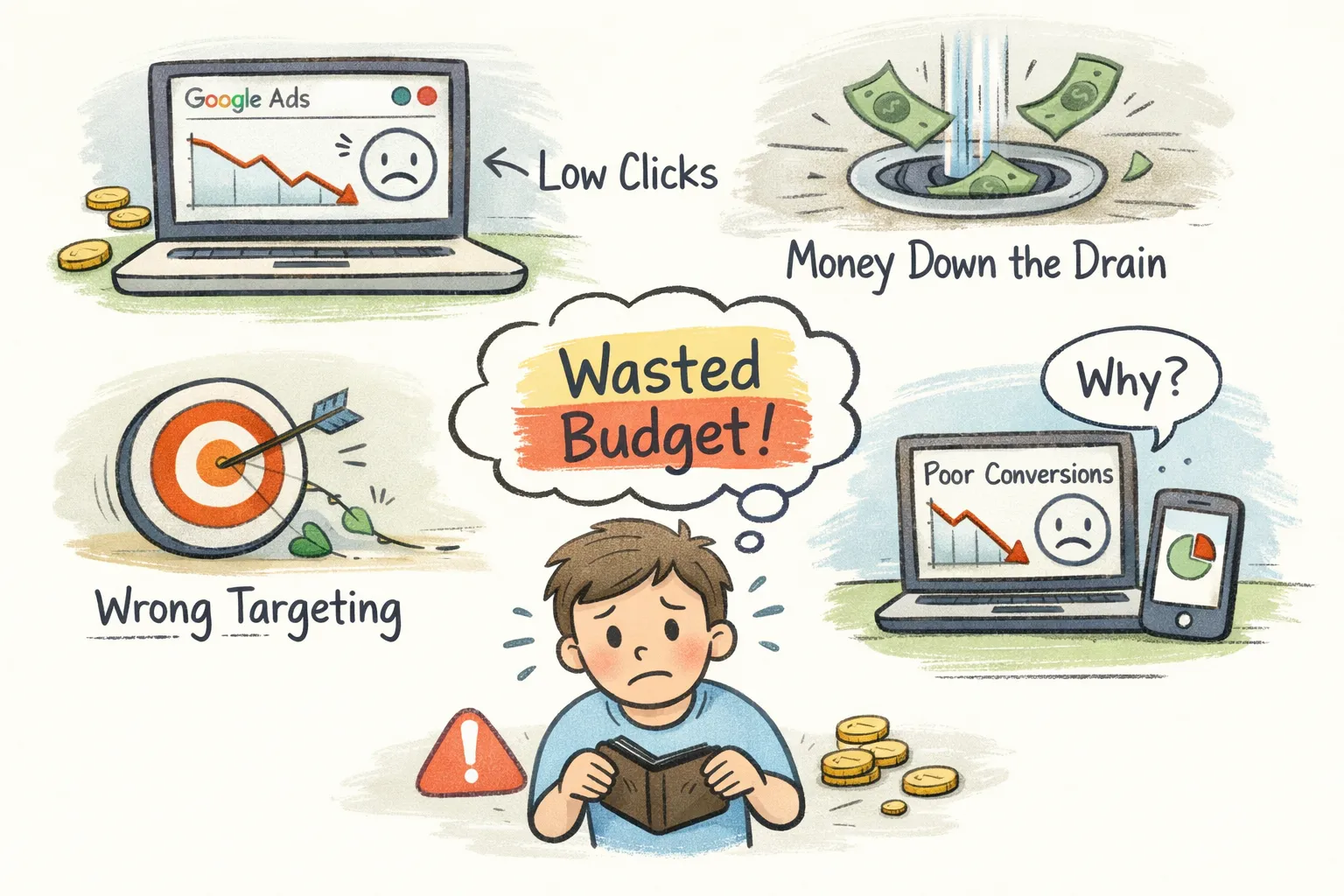
Google ads budget waste is responsible for draining between 20% and 50% of spend in poorly managed accounts, and most advertisers have no idea it's happening. The money doesn't disappear in one obvious place. It bleeds out across multiple campaign settings, neglected reports, and misconfigured tags while the account keeps running as if everything is fine.
The platform itself isn't the problem. A handful of recurring misconfigurations are. Before you spend hours hunting through campaign settings manually, the fastest first move is running a CheckMyAds audit, which surfaces these exact issues in minutes and delivers a prioritized fix list, replacing what used to take a full day of manual investigation.
Below are the 7 specific reasons your Google Ads budget is leaking, what each one costs you, and exactly how to fix it.
1. Broad Match Keywords Pulling In Searches You Never Meant to Buy
Broad match keywords without tight negative keyword coverage trigger ads on searches that have almost nothing to do with your product. A campaign targeting "accounting software" routinely shows ads for "accounting degree programs," "free spreadsheet templates," and "accounting jobs near me." Real budget. Zero purchase intent. The Search Terms report makes this completely visible, but many advertisers review it only monthly, meaning weeks of unchecked ad spend waste on off-target queries.
Are hidden account issues quietly draining your budget?
CheckMyAds surfaces the exact keywords, components, and cost drivers behind waste so you know what to fix first.
Request Free AuditAccording to WordStream's analysis of Google Ads accounts, roughly 23% of spend in accounts without structured negative keyword lists goes toward irrelevant or low-value searches. In broad-match-heavy accounts, that number climbs higher. The fix isn't switching everything to exact match. It's building a repeatable negative keyword workflow that runs alongside every campaign.
2. A Negative Keyword List That Was Built Once and Never Updated
The Search Terms report should be reviewed weekly, not quarterly. The workflow is straightforward: filter for queries with clicks but zero conversions, add high-volume offenders as negatives, and choose the right match type for each one. Use broad negatives at the account level for terms that are always irrelevant, "free," "jobs," "how to." Use phrase match for topic-specific blockers. Reserve exact match for high-specificity cases where broader exclusions would over-block.
Apply negatives at the right level. Account-level negatives stop PPC budget waste everywhere. Campaign-level negatives handle theme-specific problems without disrupting other campaigns. Ad group negatives give you the most precision when the same keyword means different things in different contexts. The goal isn't a one-time cleanup, it's a system that catches new irrelevant queries before they compound into weeks of wasted spend.
3. Conversion Tracking Errors That Corrupt Every Decision You Make
Broken conversion tracking doesn't just mean missing data. It actively misleads the bidding algorithm, pushes budget toward underperforming campaigns, and makes it nearly impossible to tell what's actually working. When tags fail to fire, the platform reports fewer conversions than occurred. Campaigns that were profitable look unprofitable. Budgets get cut from what was working.
The math compounds fast. For example, if only 60, 70% of your conversions are being captured, an account that's genuinely performing at 5x ROAS will report only around 3x. Every budget decision made on that data is built on false numbers. Smart bidding strategies like Target CPA and Maximize Conversions receive corrupted signals and optimize toward the wrong actions, accelerating budget leakage rather than reducing it.
Validating your setup requires four steps: checking active conversion actions in Google Ads, using Google Tag Manager's preview mode to confirm tags fire on conversion pages, simulating test purchases or form fills, and cross-referencing platform conversion counts against your CRM or backend data. Any gap between what the ad platform reports and what your CRM records is a red flag. Common fixes include re-adding tags via GTM, importing offline conversions for phone-based leads, and verifying that auto-tagging is enabled so the gclid parameter connects clicks to conversions correctly.
4. The Wrong Bidding Strategy Applied at the Wrong Time
Maximize Conversions prioritizes spending the full daily budget, which can result in elevated CPCs and inflated overall spend when left unconstrained. For new campaigns without conversion history, this is a necessary phase to build data. The problem arises when it runs indefinitely, or when it's applied to campaigns that already have enough conversion history to support a more efficient strategy.
The correct progression is straightforward. Start new campaigns on Maximize Conversions and run it until the account accumulates at least 30 conversions in 30 days, typically over a 6-week window, per Google's own smart bidding guidance. Then transition to Target CPA using the actual historical CPA from that period as your starting point. Don't set your Target CPA lower than what was actually achieved, because that forces Google into a low-bid posture that collapses impression share and produces wasted ad clicks on low-quality entries. The metric to track throughout is CPA and ROAS, not CPC. CPC rising doesn't mean the strategy is failing; CPA rising does.
5. How Google Ads Budget Waste Happens Through Display Network Expansion
Many Search campaigns ship with "Search Network with Display Expansion" enabled by default. This setting quietly routes a portion of your Search budget to banner placements across the Display Network, where purchase intent is significantly lower. Clicks happen, budget depletes, and the Search Terms report won't explain why your campaign is underperforming on actual conversion volume.
A/B tests published by multiple PPC practitioners show Display expansion consistently raises cost per acquisition, with some tests reporting CPL increases between 51% and 184% compared to Search-only campaigns. The volume of conversions sometimes ticks up, but at a cost that rarely justifies the trade-off for performance-focused advertisers. The fix takes two minutes: check your campaign network settings and disable Display expansion for any campaign where Search conversions are the primary goal. Keep the two networks in separate campaigns if you want to run both, so you can measure and control each one independently.
6. Internal Traffic and Unchecked Placements Eroding Your Budget
Every time an employee, agency team member, or QA tester clicks one of your ads while reviewing creative or checking landing pages, that registers as real ad spend. Without IP exclusions configured at the campaign or account level, internal traffic costs real money and skews click data in ways that distort performance reports over time.
Setting IP exclusions in Google Ads is straightforward: navigate to Campaign settings, find the IP exclusions field, and add the IP ranges used by your office, remote team, and any agency partners. Beyond IP exclusions, regularly auditing the placement reports in Display and Performance Max campaigns reveals a separate category of wasted Google Ads spend: low-quality sites accumulating impressions and clicks from audiences with no real purchase intent. These sites won't appear in the Search Terms report, but they show up clearly in placement data, and excluding them is one of the fastest ways to tighten spend on non-Search campaigns. For guidance on dealing with internal traffic tracking specifically, see how to exclude internal traffic in Google Analytics 4.
7. Performance Max Running Without Signals, Exclusions, or Budget Separation
Performance Max is the campaign type most prone to silent budget waste because it operates as a near-black box. Without proper audience signals, clear asset group definitions, and explicit brand exclusions, PMax does two things that erode account performance: it cannibalizes branded Search traffic, and it spends aggressively on low-intent placements across channels.
The cannibalization problem works like this. PMax bids on branded queries and high-priority keywords already covered by existing Search campaigns. When that happens, your Search campaigns lose impression share to PMax, which closes those same conversions at a higher cost per action. Data from large-scale PPC account analyses, including studies cited by Optmyzr and Search Engine Land, shows that Search campaigns consistently outperform PMax on cannibalized branded terms in both click-through rate and conversion rate, yet PMax captures the budget because Google's algorithm prioritizes it. The structural fix is applying brand exclusion lists to PMax and separating budgets between PMax and Search with clear boundaries in place.
On the asset group side, PMax without strong audience signals generates its own targeting from available assets, which typically means broad, low-intent reach. Proper configuration includes attaching specific audience signals to each asset group, reviewing URL expansion settings to prevent PMax from directing traffic to irrelevant pages, and adding brand exclusion lists to stop PMax from bidding on your own trademark terms. PMax works best when it has clear direction; without it, it defaults to spreading spend broadly across every available channel.
Stop Google Ads Budget Waste: Start With an Audit, Not a Guess
These 7 issues aren't edge cases. They're the standard failure modes that appear in account after account: irrelevant search queries, missing negative keywords, broken conversion tracking, mismatched bidding strategies, Display Network leakage, internal traffic, and Performance Max running without guardrails. In most accounts, several of these run simultaneously, compounding waste every single month.
The fastest way to see which of these are active in your account right now is to run a CheckMyAds audit. Instead of spending hours manually reviewing campaign settings, Search Terms reports, and tracking configurations across every campaign type, the audit surfaces every issue in minutes and delivers a prioritized list of fixes ready to apply or share with your team. No conflict of interest. No "increase your budget" as the default recommendation.
If you're seeing google ads budget waste eat into your results month after month without a clear picture of where it's coming from, the CheckMyAds audit is the fastest way to find it and fix it. Don't leave real money on the table. Start there.